Thursday, June 08, 2006

PC For Sale - Sold


The PC described below has now been sold - thanks for all the interest in it.

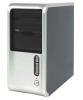
It's not often that PC Medic has a PC for sale, but right now we have a real bargain on offer which would make the ideal upgrade unit. It's a rebuilt system box with a brand new PC Medic-installed Gigabyte motherboard and Intel 3.0 GHz processor. There is a 160Gb hard disk drive divided into two main partitions - one for the operating system and programs and one for data. Also included is a recovery partition that will restore your PC to "as-new" condition, should you run into problems down the line. The motherboard is fitted with 1Gb of DDR RAM and has integrated graphics and sound. There is a free AGP slot, if you want to fit a high-powered graphics card for game playing and three free PCI slots, so plenty of expansion options exist. The box has a single optical drive in the form of a DVD rewriter.

Windows XP Home Edition with Service Pack 2 is installed and all Microsoft Windows Updates have also been installed.

Pre-installed software includes the full OpenOffice productivity suite (see the blog below on OpenOffice for details), Anti-Virus software, Anti-Spyware software, iTunes, Adobe Reader, PowerDVD (to play DVD movies) and DeepBurner (for burning CDs/DVDs).

This high-spec PC is being offered as a system box only, so you will need to add a mouse, keyboard and monitor to have a complete system. Price is only €480.00. (if you need a monitor mouse or keyboard let us know and we'll give you a price for a full system). This unit is backed-up with the unparalleled support of PC Medic.

Contact me at brendan@pcmedic.ie if you are interested or want more details.

Note that we can add extras such as a wireless network card (it already has a built-in ethernet network card) or high-performance graphics card if required - contact me for a quote.

Friday, June 02, 2006

Windows OneCare Rivals

Hot on the heels of Microsoft launching their OneCare internet security solution (see New Internet Security Option post on May 31st) both Symantec and McAfee have announced rival solutions. Symantec's product is to be called Norton 360 while McAfee's product is currently using the codename Falcon. Norton 360 will be available before March 2007, possibly later this year while McAfee will be launching a beta version of Falcon in the coming weeks.

How these products will measure up to OneCare remains to be seen. What they all need to work on is simplifying the user experience. The current generation of internet security products still do not take into account that the average home user does not know how a firewall should be configured, what ports need to be open to use an attached webcam, or what IP address and subnet mask should be set to communicate with another PC on a home network and, I would argue, a home user should not need to know this. The ideal internet security product for home users should perform an analysis of the user's PC and then set the appropriate level of security based on the results of that analysis. Thereafter it should remain silent except to notify the user of important information. How many of us have experienced pop-up windows from internet security packages like Norton or McAfee that present cryptic message that are alsmost impossible for the average user to understand? Internet security software needs to get smarter and simpler at the same time. Let's hope that the products that will arrive in the next few months can achieve that.

Thursday, June 01, 2006

Microsoft Office Alternative

If you are in need of office productivity software (i.e a word processor, spreadsheet, presentation graphics or database) but don't currently have any installed on your PC then you have a few options that you can take. The current industry standard for office productivity software is Microsoft Office, which many of you will be familiar with from your working environment where you will have encountered Word, Excel or Powerpoint. Unfortunately, Microsoft Office doesn't come cheap - about €520 if you want to install the standard version of Microsoft Office 2003 on your PC. While most people would balk at the thought of paying so much money for software, it is in fact pretty good value for money, but it's still a lot of money.

An alternative that many people have yet to discover is the free, yes free, OpenOffice which can be downloaded from OpenOffice.org. This software is what is termed Open Source software and the following, taken from the OpenOffice.org website gives a bit of background to the software.


Historical background
StarDivision, the original author of the StarOffice suite of software, was founded in Germany in the mid-1980s. It was acquired by Sun Microsystems during the summer of 1999 and StarOffice 5.2 was released in June of 2000. Future versions of StarOffice software, beginning with 6.0, have been built using the OpenOffice.org source, APIs, file formats, and reference implementation. Sun continues to sponsor development on OpenOffice.org and is the primary contributor of code to OpenOffice.org. CollabNet hosts the website infrastructure for development of the product and helps manage the project.


Product Description
OpenOffice.org released the long-awaited version 2.0 of its free office suite for Windows, Mac and Linux on 20 October 2005 adding a new database module, support for the OpenDocument file format, a fresh user interface, and plenty of improvements and bug fixes.
OpenOffice.org 2.0 is the first open source office suite to offer thorough support for the Open Document Format for Office Applications (OpenDocument) OASIS Standard. OpenDocument is an XML file format that was developed by OASIS, the international body for the development and ratification of e-Business standards. The OpenDocument format can be used by any office application without fear of vendor specific lock-in or onerous licensing terms and fees, with the confidence that documents can be viewed, edited and printed for generations to come.

The suite now also offers a database module, Base, to complement the word processor (Writer), spreadsheet manager (Calc), presentation manager (Impress) and drawing tool (Draw) modules. These give all users the tools they need to be productive in the modern world. Free for all, OpenOffice.org offers everyone the enduring freedoms to use, study, improve and share the software. Users can download it for free from the Project's Web page.

With a new user interface, OpenOffice.org 2.0 is easy to learn and use by the most inexperienced user, and is significantly more compatible with Microsoft Office files than prior versions. Supported by dozens of professional companies, OpenOffice.org 2.0 will be available in more than 60 languages. Able to run on Microsoft Windows, GNU/Linux, Sun Solaris and other platforms, OpenOffice.org is increasingly the choice of businesses and governments throughout the world, and earlier versions have been downloaded over 49 million times since the project's inception.


So OpenOffice is a non-commercial version of the Sun Microsystem's commercially available StarOffice. The key difference between OpenOffice and StarOffice is that the former is supplied free of charge and with no support from Sun Microsystems. However, although not supported by Sun Microsystems, there is a vast range of support for OpenOffice through online user sites, forums, and blogs.

From the perspective of an average home user, OpenOffice can do everything that you would want to do, or could do with Microsoft Office. It even feels like Microsoft Office in terms of menus and commands that you might be used to. And, probably most importantly of all, it is compatible with Microsoft Office. So, if you are sent an Excel spreadsheet you can open it in the OpenOffice equivalent program which is Calc. If you create a document in the OpenOffice word processor, Writer, you can save the document as a .doc file that can be opened by Microsoft's Word.

The Windows download is 91MB, a few minutes if you have broadband, and versions are available for Linux and Mac users. Try it and let PC Medic know what you think.

 Use OpenOffice.org

Wednesday, May 31, 2006

New Internet Security Option

For those of you who have depended on Norton or McAfee to provide you with protection from viruses and other internet nasties you now have a new option. You probably will have heard of the company that has entered into competition with the market leaders in internet security - it's Microsoft.

Microsoft has just launched their Windows OneCare service which offers anti-virus, anti-spyware, two-way firewall, back-up and restore and system tune ups for $49.99 per year for up to 3 PCs. PC Medic signed up for their 90-day free trial earlier today and I can confirm that the sign-up, download and installation is a painless process that took about 15 minutes. Once installed the system will assign you a colour-coded status depending on what it finds on your PC.

A green icon means your status is Good. Protection Plus features like antivirus and firewall are up to date, your computer is not due for a tune-up or a backup, and there are no actions to take requiring your attention. Windows Live OneCare is running in the background, monitoring your system to prevent threats like viruses or spyware.

A yellow icon means your status is Fair. Usually this means you have an action to take, such as scheduling or running a tune-up or backup, or downloading a non-critical update. A yellow icon means there is no immediate threat to your system, but you should take care of the action as soon as you can to return your system to green.

A red icon means that your computer is At Risk. This can happen if, for example, Windows Live OneCare is unable to update Protection Plus with the latest virus definitions because of a lost Internet connection, or if the Windows Live OneCare Firewall is turned off.

The new firewall allows better control over outgoing traffic, as well as incoming traffic, and retains the simplicity and design of the firewall introduced in Windows XP Service Pack 2.

Full details from Microsoft's OneCare site.

Microsoft seems to have put a lot of effort into keeping the user interface as simple as possible, something other internet security vendors could learn from. Time will tell how effective the product is at keeping the nasties at bay. For now, its the only protection I have on my laptop and will report back in due course on my experiences with it. As the product has only just been released (though its been in public beta for some months) we can't recommend that you dump your Norton or McAfee products and install OneCare. However, PC Medic will report our experience with the product over the coming weeks and let you know what we think.

Tuesday, May 30, 2006

Router Reboot

One of the most common access problems you can have with broadband is when you open Internet Explorer and you get the dreaded Page Cannot be Displayed message. This can happen for a number of reasons, but the most common cause is that your router needs rebooting. The router is normally supplied by your broadband service provider - Netopia routers with Eircom and Zyxel routers with ESAT/BT - and these are, in effect, simple computers. Like all computers (unfortunately) they sometimes hang and if they do they will not allow internet access until they are rebooted.

Rebooting simply involves turning the power switch at the back of these units off for about 15 seconds. The power can then be turned back on again and the router will start its boot sequence, which can last for up to a minute. Once it has rebooted you may find that your internet access is magically restored.

In the case of wireless routers I have come across the situation where PCs connected to the router by ethernet cable can access the internet but wirelessly connected PCs cannot. Again, while there are a number of reasons why this might occur, a quick reboot of the router often resolves the issue in less than a minute.

One word of caution, you want to reboot your router, not reset it. At the back of your router you will find a recessed reset button that can only be pressed using a pen tip or paper-clip. You should never press this button unless instructed to do so by your internet service provider (or you know how to reconfigure a router manually!) as you will clear all the configuration settings needed to connect to your broadband service.

Sunday, May 28, 2006

Rogue Spyware Removal Programs

On more than one occasion a customer has told me how they got messages that their PC was infected by spyware and that they should download a named program, for $39.99, and all their problems would be resolved. However, after downloading said program their problems got even worse. What had happened here was that the customer's machine had become infected with spyware and they were duped into buying a rogue anti-spyware program - a program that did nothing for the money they paid for it.

Currently the number of rogue anti-spyware programs outnumber legitimate ones by a factor of nearly 10 to 1, so its important to know what's what. The Spyware Warrior website carries a comprehensive list of those programs that are known to be, or strongly suspected of being rogue software. If you are thinking of buying anti-spyware software (or if you bought a package and are concerned over its credentials) I suggest paying a visit to this site. PC Medic recommends Counterspy, from Sunbelt Software, as an effective first line defense against spyware.

Tuesday, May 23, 2006

Vista on the Horizon

Microsoft has recently announced that the next generation of their Windows operating system, called Vista, will not now be available to the home user market until January 2007. Despite the hype that will surround the launch of Vista, it will be an evolutionary rather than revolutionary product. The home user will notice the slick new Aero interface as the biggest change, followed by a new Windows Explorer and the provision of virtual folders. Much of the rest of the improvements relate to networking and security and may not be apparent to a casual home user, but are improvements that will hopefully make Vista a more secure operating system than its predecessors.

Microsoft has recently launched a GetReady site for Vista where you can find details on the minimum specification needed to run the new OS (for now, I suggest that you should take these minimum specs with a grain of salt as Microsoft has tended to understate these in the past - 128MB of RAM for XP Home? Yes it runs, but like a lame dog). What we can say from what they have published is that a lot of PCs out there will require a lot more RAM and more powerful graphics cards if Vista is to display the features of the new Aero interface. We'll save the debate about whether you should upgrade to Vista until after we have had the opportunity to try Vista for ourselves.

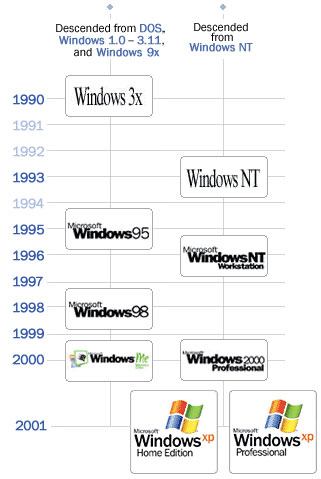
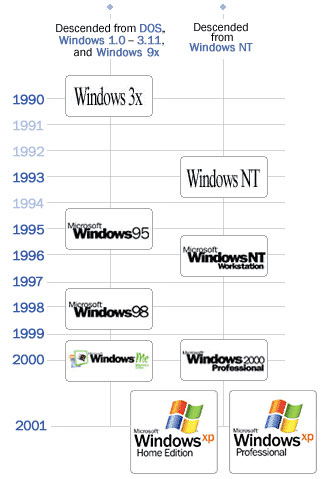
You may be interested to note that Windows XP, at the time of the launch of Vista, will be Microsoft's longest running Windows operating system, while Windows Me was the shortest surviving (no surprises there then).

Sunday, May 21, 2006

File Sharing Risks

If you're a regular to this blog you have, no doubt, heard me expound upon the risks of file-sharing. This is using programs like Limewire, Kazaa, BitTorrent, Bearshare, Morpheus and others to obtain free music or films via the internet. I came across this article recently and anyone who has a PC connected to the internet should take the time to read it as it provides a succinct summary of the risks of using such software.

Some other links that provide details of file sharing risks are here, here, here and here.

Thursday, May 18, 2006

New Generation Optical Storage

One storage option that you can skip for now is the recently introduced Blu-ray drive from Samsung, the eloquently named SH-B022 BD Writer, pictured below, among the first of a new generation of drives that can write up to 50GB (more than 10 DVDs) onto a single disc. This is done using a blue laser (hence the Blu-ray moniker) rather than the red lasers found in current CD and DVD writers. This is analogous to using a finer-tipped pen for writing, thus allowing more words to be written to a page.

The main driver for such high capacity storage discs is High Definition TV (Or HDTV as it has become known). With the advent of HDTV, which will be available in Ireland from SKY later this year, current DVD discs do not have sufficient storage capacity for a two-hour movie. So a new format needed to be found for storing HD movies. Unfortunately two solutions were found: Blu-ray, which was developed by a consortium comprised of Apple, Dell, Hewlett-Packard, Hitachi, Panasonic, Samsung, Sharp, Sony, Warner Brothers and Walt Disney, among others - all heavy hitters in the electronics/entertainment industries; and HD-DVD or High Definition Digital Versatile Disc, which was developed by Toshiba and supported by NEC, Sanyo, Microsoft, Intel, Paramount Pictures and Universal studios.

Many of you may remember a similar situation back in the early eighties when two formats of video recorder were introduced simultaneously: Betamax by Sony and VHS by JVC. In that battle the technically superior Betamax format lost out to VHS after a number of years of bitter competition. The lesson that should have been learned from that debacle is that only one format will win the battle if the two are non-compatible - as was the case with Betamax and VHS and as is the case with Blu-ray and HD-DVD (the latter discs only store 15GB of data as opposed to Blu-ray's 50GB).

Like all new technologies the early adopter pays a premium for the privilege of being among the first to use it. Samsung's new Blu-ray writer will set you back €850, and you'll have to pay €46 for each blank 50GB disc - not for the faint-hearted. However, expect prices to drop significantly in the future for whichever format wins the war. Back in August 2001, less than 5 years ago, a Pioneer DVR-A03 DVD writer for your PC would have cost you €960 ex-VAT! For now, look elsewhere for a backup solution.

Sunday, May 14, 2006

Change of Image

We're in the process of re-designing the PC Medic blog, so you may see a few changes in appearance over the next few weeks. Let us know via the comments whether you like/dislike the new designs.

Saturday, May 13, 2006

Online Storage

When it comes to backing up your data it's generally a case of "I'll get around to it tomorrow". I'd be the first to admit that data backup is not the most interesting thing that you can do on your PC, but it has to be done if you want to ensure that you don't finish up losing some important files at some point in the future.

One of the reasons we don't back up our data more frequently than we should is that we don't always have a convenient and suitable place to copy the data to. Floppy disks are unreliable and hold very little data (1.44MB). CD's and DVDs are reliable and hold between 650MB and 4.7GB but aren't always to hand when you want to backup your data. A second hard disc drive, preferably an external one is the ideal solution, but not many users have an external hard disc drive.

If you have a broadband internet connection there is another option open to you and, depending on how much data you want to back up, it need not cost you a penny. The possible solution to your backup problems is online storage. There are now a wide range of companies that will offer online storage, which involves uploading your precious data to the data storage company's servers. Once the data has been uploaded you can retrieve it at any time, so if your computer suffers a catastrophic failure at some point in the future, resulting in total data loss, you can be sure that your data is OK and you can download it to your PC again once it has been repaired. An added benefit of storing your data online is that no matter where you are in the world, once you have access to a PC with an internet connection, you can retrieve your stored data.

So, who are the main players providing this service? Well there are quite a few, each offering slightly different products, so you need to shop around for the one that suits you. Three players that you might want to check out are Xdrive, Box and Streamload. The last of these, Streamload, offers 25 GB of storage for free, though there are restrictions on how much you can download per month (100MB). If you want to download more than 100MB per month from your online data repository then you will need to sign up for one of their subscriptions - $4.95 per month increases your download allowance to 2GB per month and you get unlimited storage, as opposed to 25GB with the free service. Other subscription rates allow greater monthly download allowances.

Box also offers free storage, though only 1MB, and 5GB will cost you $4.99 per month, which is still pretty good value for the safekeeping of your data. XDrive doesn't offer free storage and comes in at $10 per month for 5GB of storage, but offers extra security for the premium price.

One service that we haven't checked ot, but which looks pretty interesting is Carbonite, check it out for yourself.

The bottom line is you need to back up your data - not necessarily all your data, but at least the data that you consider important and irreplaceable. How you do it is up to you - but with the advent of online data storage you now have a convenient and always accessible option. Check out the services that I have highlighted and Google online storage to see other potential solutions. Look carefully at the various options before selecting one that suits you.


Update: IBackup has contacted PC Medic to inform us of their service. Check out their comment below.

Tuesday, May 09, 2006

Footnote on Internet Filtering

I should have mentioned in my earlier post that those of you who use Eircom as your Internet Service Provider can avail of their Broadband Guardian service free of charge. We have had a look at this service and, considering it's free, it's not half bad. It allows you to set up an account for each user of the internet and each account can be regulated in terms of how much time the account owner can spend on the internet per day, what times they can use it at, whether they can see mature content or not, who they can e-mail and who they can chat to using instant messaging programs.

The only downside of this service is that the Netopia ADSL Modem/Routers that Eircom issue do not support Broadband Guardian without a firmware update (note that the service is only compatible with Eircom-supplied Netopia Modem/Routers). There is a firmware update wizard that we tried which didn't work - speaking to Eircom support they told us that they didn't know anyone who got the wizard to work! We had to update the firmware manually, not difficult but you need to follow the directions carefully or your router becomes a paperweight. The average computer user should never be asked to update firmware - it's like asking the average car owner to change the oil in their engine - they could probably do it with guidance, but it's not an enjoyable experience. Then again, would we expect anything different from Eircom?

Friday, May 05, 2006

Tuesday, May 02, 2006

Internet Filtering Software

A customer recently asked us if we could recommend a suitable software package to ensure that his young children could use the internet without the risk of being exposed to unsuitable sites. This was something that we hadn't looked at in detail so we decided to round up a number of packages, load them up and compare how good a job they did. The packages we reviewed were:

ContentProtect
CyberSitter
NetNanny
CyberPatrol

These packages were rated the top four internet filtering options by TopTenReviews, so we reckoned they were all worth looking at.

ContentProtect came out the #1 choice of TopTenReviews, but we ran into problems with the product refusing to save the setup configurations we chose. Because of this we couldn't give it our recommendation.

CyberSitter is a good package if the children are the only ones to use the computer. Since this program doesn't allow individual user accounts to be set up, e.g. different internet access levels for Mum/Dad, a teenage child and a pre-teen child, we can't recommend it where the PC is used by the whole household.

NetNanny is a program that you may have heard about as it was one of the first internet filtering packages available for the PC. The current version is pretty easy to set up and allows access to be configured for different types of user, a feature missing in CyberSitter. Our main gripe with this product was that it made searching the internet extremely slow - unacceptably so in our opinion.

Then there was CyberPatrol. This program ticked all the right boxes for us. It allowed each user of the PC have their own account, so that Mum/Dad can look at content that may not be appropriate for 10-year old Johnny, it did not slow down internet searches or browsing, and it was intelligent in what it filtered. For example, in a user account that was set up for a pre-teen, if the user tried to Google the word sex then Cyber Patrol would return a screen saying that the search was not allowed. However, if the same user account Googled the words sex education, then the search results would be displayed.

One point to note is that whatever package you use, none of them are infallible. Some will block what you might consider appropriate material and some will let through what you might consider inappropriate material. They are not a substitute for keeping a close eye on what your younger children are trying to see on the Internet.

Wednesday, April 26, 2006

Back to Basics - Summing Up

To end our back to basics series I want to bring you on a photo tour of the inside of a PC, pointing out some of the items we discussed during the course of this series. Remember, to see any picture in more detail just click on it.

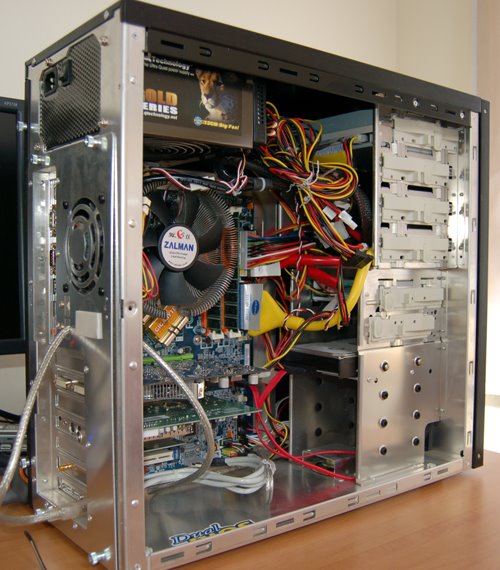
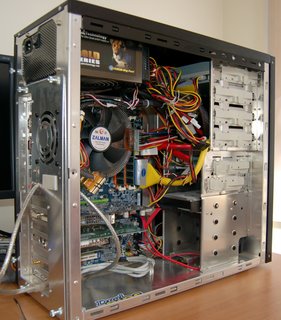
First up and overall view of the PC we will be looking at with its side panel removed. For those who weren't paying attention, the rear of the PC is on the left!

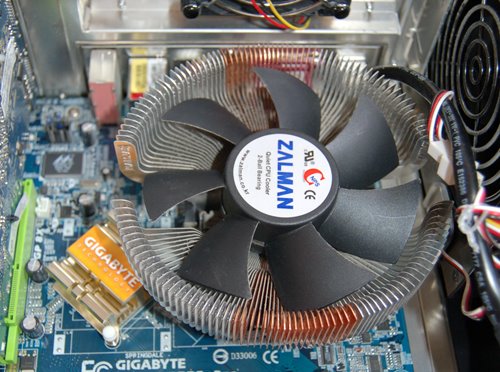
Moving in in more detail, the next picture shows the heatsink fitted to the CPU. The actual CPU can't be seen in the picture because the heatsink is mounted on top of it. The heatsink used on this PC is a low-noise type made of copper and aluminium made into a series of radial blades that present a large surface area for heat transfer. The large, low-speed fan in the centre of the heatsink only comes on when the CPU exceeds a certain temperature. Because this particular heatsink is very efficient at dispersing heat on its own, the fan remains off most of the time, leading to a quieter PC.
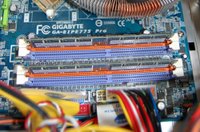
The next picture shows the memory modules mounted in the motherboard memory slots. This motherboard has four memory slots (2 x purple and 2 x orange) and two of the slots are occupied with 512MB of DDR2 RAM in each, for a total of 1GB of RAM.
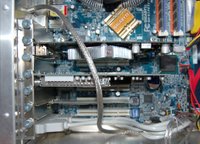
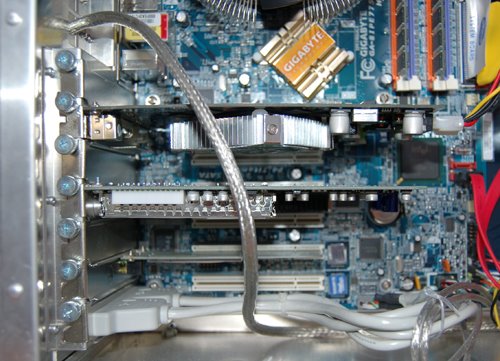
Now we're looking at the PCI slots on the motherboard, of which there are five. The slot above the first PCI slot is the AGP slot and contains an AGP graphics card. Moving downwards, the first PCI slot is unoccupied. The next one down contains a TV tuner card. The third slot is unoccupied while the fourth slot contains a wireless network card. The final slot is empty. Just because there are five PCI slots on a motherboard, it does not always mean that you can use all five of them. For example, because of the large heatsink on the graphics card in the AGP slot, there is little room for fitting a card into the first PCI slot.
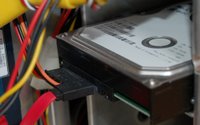
The hard disc shown in this picture is a relatively recent type referred to as a parallel type, as opposed to the older and more common serial type. The principal difference between them is the connectors. Rather than using the wide ribbon data cables I discussed in the section on hard disc drives, the unit shown in the picture uses a smaller and more easily fitted parallel cable (red in the picture). The other difference is the power connector which isn't the typical Molex type but a slimmer design. Otherwise the hard disc drive types are indistinguishable and the disc is mounted in its usual position at the bottom front of the system case.

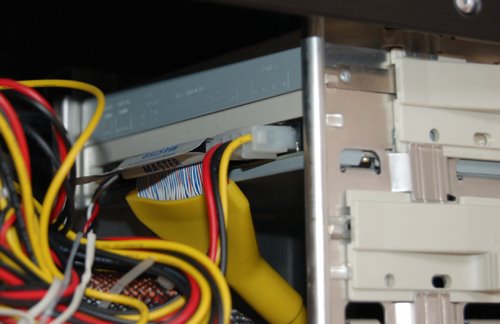
This PC is fitted with a single optical drive, a CD-RW unit, located at the top front of the system case. In the picture you can see the multi-strand ribbon cable attached to the drive (this is a special type of ribbon cable rolled into yellow tubing to take up less space in the system case) as well as the 12V Molex power connector.


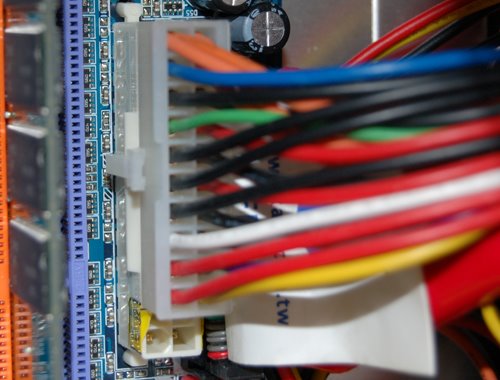
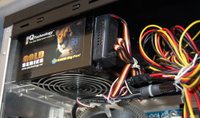
The power supply unit, or PSU) is fitted to the top rear of the system case and in the picture you can see part of the wiring loom that comes out of this unit. The following picture shows where the ATX power connector fits onto the corresponding socket on the motherboard.


Finally, a picture of the back of the case that shows, from the top down, the rear of the PSU (in brown), the on-board connectors that are built in to the motherboard (these are the mouse and keyboard PS/2 connectors, 2 x serial port and 1 x parallel port connectors, 4 x USB ports, an ethernet port and 3 audio sockets for loudspeakers and microphone). Click on the picture to see a larger version. Note that I didn't deal with the parallel and serial ports in my earlier articles as these are used less and less (if you have an old printer you may still be using the parallel port - sometimes called the printer port).

To the right of the on-board connectors is one of the system case fans, which exhausts warm air from the case.

The bottom section is where the connectors from the AGP graphics card and PCI cards emerge into the world.

So, there you have it. Hopefully, if you have been following our Back to Basics series from the beginning, you now have a better understanding of the different components that come together to make your PC work.
Monday, April 24, 2006

Back to Basics - The Power Supply Unit

The power supply unit, or PSU, is what provides power at various different voltages to the motherboard and other components inside the system case. The size and type of connections attached to the wiring loom comply with the ATX standard so that, physically at least, any PSU can be mounted in any ATX system case. The PSU is always mounted at the top rear of the system case and will normally have at least one fan that serves two functions: it vents warm air from the system case that arises from the CPU heatsink; it cools the PSU itself, which can generate quite a bit of heat when a full load is being pulled on it.

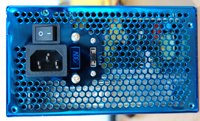
When the PSU is mounted in the system case the back panel of the PSU protrudes to reveal the standard mains kettle lead connector and, on some models, an on-off switch. There is usually also a voltage selector switch which should always be set at 230V for the Irish supply. Mounting and dismounting the PSU in the system case is via four screws on the back panel.

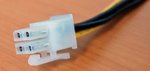
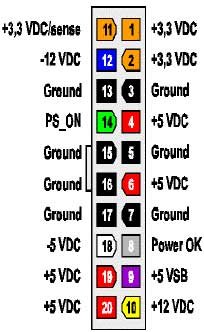
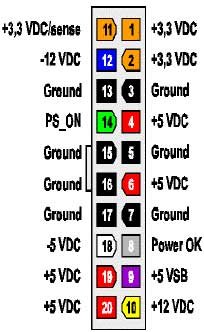
There are two connectors that connect directly to the motherboard - these are the ATX power connector and the 12V power connector (see pictures). Both these connectors are keyed, which means that they cannot be inserted incorrectly into the motherboard sockets. The PSU provides power at a number of different voltages: +12V, -12V, +5V, -5V and +3.3V each of which is supplied to the motherboard via the ATX connector. The accompanying pin-out diagram displays the voltages associated with each pin of the ATX connector.

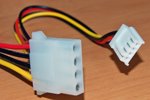
In addition to the ATX connector and 12V power connector, both of which are plugged directly into the motherboard, the PSU has two other types of connector (well it actually has more, but the others are outside the scope of this article) and these are the 12V Molex connector, which is used to bring power to the optical drives and hard disc drives, and the 12V floppy disc connector, both of which can be seen in the accompanying photo.

The output of a PSU is measured in Watts and PC manufacturers have had a tendency to put in PSUs with low-ish power ratings (150-200W). That's not a problem until you start adding extra components to your PC, which increases the overall power consumption. This can happen if you add an extra hard disc drive, or install a more up to date graphics card. If you exceed the overall power rating of your PSU you may find that the PC randomly crashes or reboots. The problem can be readily rectified by upgrading the PSU to say 250-300W. You should be aware that you can now buy PSUs rated at up to 700W - but bigger is not always better. It's been estimated that even the most heavily loaded PC running full bore will not exceed 300W, so going for a PSU that delivers over twice that amount of power may just result in extra heat being generated, requiring extra fans for cooling, resulting in a noisier PC.

To finish up this series I'll bring you on a tour of the innards of one of PC Medic's PCs that will show all of the items mentioned in our Back to Basics articles in situ in a real PC.

Friday, April 21, 2006

Back to Basics - Optical Drives

The term "optical drives" is a fancy collective term for CD-ROM , CD-RW, DVD-ROM and DVD-RW units which can be found in practically all PCs these days. Let's just clarify the definitions: CD-ROM will allow you to read CDs only but not write to them; CD-RW, will allow you to read and write to CDs; DVD-ROM will allow you to read both CDs and DVDs; DVD-RW will allow you to read and write both CDs and DVDs. If you are unsure what type of device, or devices, you have on your PC you can check by going into the Device Manager, expanding the entry for DVD/CD ROM drives and looking at the properties for each entry.

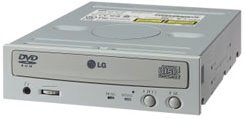
The CD and DVD units that fit into your PC are a standardised size to fit in the 5.25" bays found at the top of the system case. The picture shows how it looks before mounting in the system case. There are three connections on the back end of the unit: a ribbon cable that connects to the motherboard, identical to the one that connects the hard disc drive; a 12V Molex power connector that comes from the power supply unit which powers the motor that spins the discs; an audio lead that connects to the sound card or sound module on the motherboard (without this you will hear system sounds and sounds in games, but not music from CDs).

Just a couple of points in relation to CD and DVD units.

1. If you want to record music CDs that you will play on other CD players, such as in a car or home CD player, don't use CD-RW (rewritable) discs. While these will normally replay fine on the CD drive that they were recorded on, they don't always play on other units. Stick to CD-R (recordable) discs.

2. To be able to play DVDs on your PC you need to have a video codec (compressor/decompressor) installed, which is a piece of software produced by companies like nVidia or Intervideo. Chances are that such a codec was installed on your PC when you purchased it. However, if you ever have to reinstall your operating system don't be surprised if you can't play DVDs. Windows XP does not natively support DVD playback and you will have to install a third party codec - either one that came on the discs supplied by your PC manufacturer, or you will have to purchase a third party codec.

3. Don't be cheap when buying CD and DVD recordable media. From my own experience I can tell you that if you buy no-brand, "50 for €10.99" discs you should be prepared to end up with a lot of coasters. Cheap media often do not play back well on any unit but the one that they were recorded on - stick with a good brand like Verbatim, Imation or Traxdata.

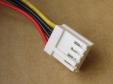
While it isn't an optical drive, I want to say a few brief words about floppy disc drives in this section as they don't warrant a section to themselves. The floppy disc drive, if you have one, and you probably do, is attached to the FDD connector on the motherboard by a ribbon cable and it has its own power connector that comes from the power supply unit (see the pictures).

In the 21st Century, nobody should still be depending on floppy discs for backing up their data. Modern day floppy discs are notoriously unreliable as they are being manufactured too cheaply to assure quality. PC Medic has found that up to 30% of discs bought at retail level cannot be written to and many of those that can be written to cannot be read at a later date. Do not put your trust in floppy discs - use more reliable methods such as CD or USB memory sticks. You have been warned.

Next ... the PSU.

Thursday, April 20, 2006

Back to Basics - Plug-In Cards

We mentioned in our earlier article on motherboards that modern motherboards can have most of the functionality needed integrated into the on-board electronics, such as modems, networks cards, graphics cards, etc. While this is certainly true, many PCs use motherboards that do not have this functionality integrated. So what happens if you decide to use your PC on a home network but find that there is no network interface built into the PC? The answer is that you fit a network interface card to one of the empty PCI slots on your motherboard (refer back to the motherboard article to see what these slots look like). The PCI slots in motherboards allow plug-in cards to be inserted and these can then communicate with the rest of the PC. In order for this to happen device drivers must be installed, but we'll come back to them in a moment.

The picture on the left shows a variety of different plug-in cards that can be added to the motherboard to enhance the functionality of the PC. From the top down we have a modem card, a graphics card, a sound card and a 10/100 network interface card. With the exception of the graphics card, these all can be fitted to any free PCI slot on the motherboard (most motherboards have between 3 and 5 PCI slots). The graphics card is plugged into a special dedicated graphics slot called the AGP (advanced graphics port) slot, of which there is ever only one on a motherboard. Other PCI slot plug-in cards that could be fitted include TV tuner cards, USB connector cards, wireless network cards and Firewire cards. As there are a limited number of PCI slots on your motherboard, and some of them may already be occupied, you may not be able to fit all of the options just listed.

If you bought your PC in the last 12 months you may have a new type of PCI slot called a PCI Express slot in addition to, or instead of, standard PCI slots. These new slots use a different architecture which allows data to transfer at significantly higher rates than the older PCI slots and will eventually replace the older slots on all new motherboards. The PCI and PCI Express slots are a different physical design and cards designed for one slot type cannot be used on the other.

Just inserting a plug-in card in a slot is not enough to allow the card to start operating with the rest of the hardware and the operating system. In order to get the card talking to the other hardware and the OS it is usually necessary to install what are known as device drivers. A device driver is a software program written for a specific piece of hardware that allows it to communicate with the rest of the system. Drivers can sometimes become corrupted and when that happens the hardware that the driver was written for can malfunction. This can normally be remedied by the removal of the corrupted driver followed by a reinstall of the driver. Often manufacturers of plug-in cards release their products to market before their drivers have been fully debugged and problems can arise when using the hardware under certain situations. Because of this it is not uncommon for the manufacturers to release updated drivers that address known issues as they come to light. Windows XP makes it easy to update drivers as new versions are released.

Of all the various types of plug-in cards that are available, adding or upgrading a graphics card is probably the commonest, particularly if a PC is being used for playing games. When it comes to adding a new graphics card, the sky is the limit in terms of how much you can spend. The card on the left is a recently released XFX GeForce 7900GTX graphics card for playing the latest and next generation of games. This will set you back a cool €650 - more than you might pay for a new PC system from Dell. For the dedicated gamer only!

Next up, optical drives.

Wednesday, April 19, 2006

Back to Basics - The Hard Disc Drive

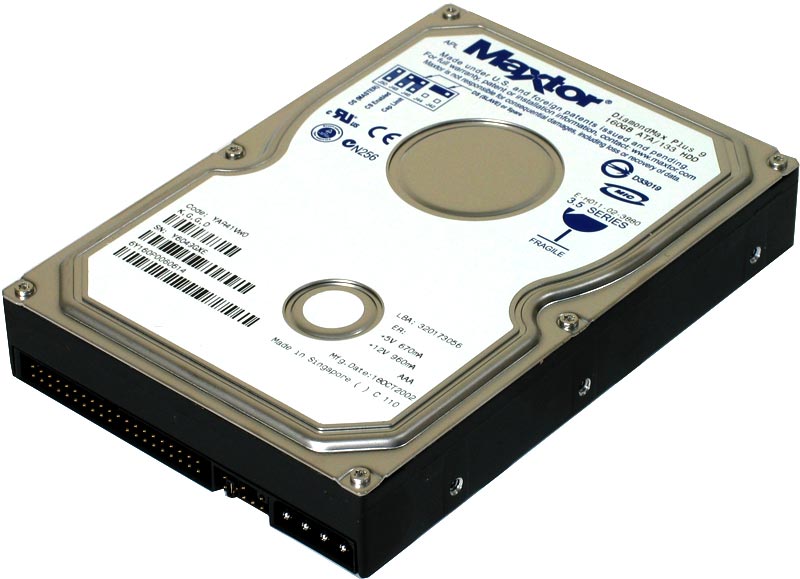
Whereas RAM can be said to be the equivalent to short-term memory, the hard disc drive (or HDD) can be thought of as the long term memory of the computer. Every PC has a least one HDD and its becoming increasingly common for home PCs to have a second one. Hard disc drives come in two form factors - 3.5" drives and 2.5" drives. The larger drives are used almost exclusively in desktop PCs of the type found in homes and offices, while the smaller 2.5" drives are found in laptop computers. The pictures above show a 3.5" HDD (left) alongside the smaller and thinner 2.5" HDD. In a desktop PC the HDD is normally mounted in an enclosure at the bottom of the system case and will be connected to the motherboard by means of a ribbon cable similar to the one in the diagram. Also connected to the HDD will be a 12V Molex power connector from the system power supply unit. A closer look inside the HDD case will reveal why a 12V power supply is needed.

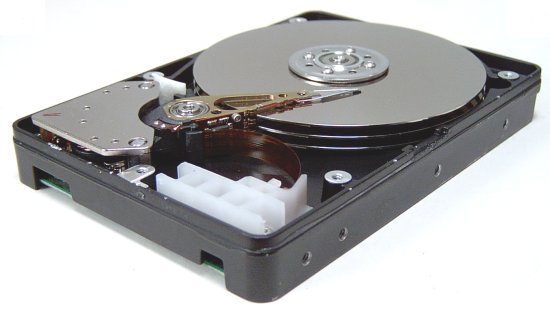
Inside the case, which you should never attempt to open, is a stack of circular platters. These are made either of aluminium alloy or a mixture of glass and ceramic. To allow data storage, both sides of each platter are coated with a magnetic medium - formerly magnetic oxide, but now, almost exclusively, a layer of metal called a thin-film medium. This stores data in magnetic patterns, with each platter capable of storing a billion or so bits of data per square inch (bpsi) of platter surface. Typically two or three or more platters are stacked on top of each other with a common spindle that turns the whole assembly at several thousand revolutions per minute. There's a gap between the platters, making room for magnetic read/write heads, mounted on the end of an actuator arm. The designation 3.5" and 2.5" refers to the diameter of the platters. The 12V power supply is needed to turn the spindle at speeds up to 10,000 rpm, but more commonly 7,200 rpm.

Because the HDD has platters rotating at such high speeds and a read-write head zooming around just above the surface of the platters, it is easy to damage a HDD if the PC is moved or jolted suddenly while the platters are spinning.

As we said at the beginning, the HDD is the long term memory of the PC where programs, data and indeed the operating system itself are stored as magnetically-oriented metal particles on the surface of the platters. This data is persistent and, unlike the data in RAM, does not disappear when power to the PC is turned off. The amount of data that can be stored on a single HDD has grown dramatically over the past few years. Five years ago a 40GB hard disc drive was considered large. Today, the largest capacity HDDs are in the region of 500GB and most new PCs will have 160GB-250GB HDDs as standard - an awesome amount of storage capacity for a domestic PC.

Tomorrow, plug-in cards.

Tuesday, April 18, 2006

Back to Basics - RAM

RAM, or random access memory, is your computers short term memory. It should not be confused with the hard disc, which provides long term storage space for programs and data. When you turn on your computer the information needed by your operating system (Windows) to get the computer up and running is loaded into RAM. When you decide to launch a program, such as a word processor, that program is loaded into RAM and it remains there for as long as the program is being used. If you want to open further programs, these too will occupy a part of the available RAM. As the amount of RAM on any computer is finite, if you open too many programs you will find that you will start to run out of memory, everything will start to slow down and your computer will start to feel unresponsive.

You should remember that RAM only stores information when your computer is turned on - as soon as you switch off your machine all information in RAM is lost.

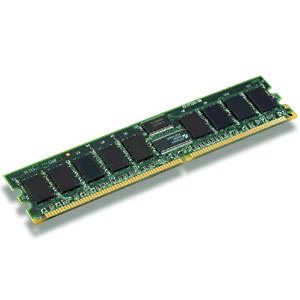
So what does RAM look like. The most common type of RAM in most home PCs is DDR DIMM RAM - quite a collection of acronyms that stands for double data rate, dual in-line memory module, random access memory. This type of RAM comes on modules like the one in the picture.

RAM modules come in different sizes and the capacity of a module is measured in bytes (a byte allows eight bits (or individual binary numbers) to be stored. Typical modules allow between 64MB (megabytes, or million bytes) and 1GB (gigabytes, or 1000 million bytes). These modules plug directly into the motherboard and most motherboards have slots for between two and four RAM modules. In general, most modern PCs can be fitted with between 512MB and 4GB of RAM. Unfortunately, in order to keep their retail price low, many computer manufacturers used to skimp on the amount of memory that they fitted to their PCs. This is particularly true for PCs that are more than 2-3 years old.

So, how much memory do you need. Quick answer? As much as you can afford! Adding memory to a memory deficient machine is probably the most cost effective upgrade that you can make. If you are running Windows XP then, in our opinion, you should have at least 512MB of RAM. Yes, you can run XP with just 128MB, but as soon as you open more than one application things will start to slow down. With 256MB things improve somewhat, but you will still have slow downs if you are using more than three or four applications or if you have many memory-resident applications running in your system tray (icons in the bottom left of your screen). Depending on the particular PC that you have, 512MB of RAM can be added for between €80-€100 and this can transform a sluggish 3-4 year old machine into a perky one that will meet needs for another few years.

If memory fails it can manifest itself in a number of ways, but random reboots is one of the most common. If your machine tends to reboot for no particular reason while you are using it then faulty RAM is a prime suspect (though there are other possible causes). Another fault that is seen with RAM is module creep, where the module gradually creeps out of the connector. This arises due to the heat/cold cycling of the module and can result in a completely dead machine that refuses to boot. So check for looses RAM modules if your machine shows this behaviour.

Next up, the hard disc, hard drive, disk drive, take your pick.